Creating and Managing the Client Portal
The client portal provides clients with a clear, read-only view of their work.
It allows clients to see quotes, invoices, project progress, and status updates without needing a login, account, or ongoing access to your WordPress admin. Access is controlled through secure, time-limited links.
The portal is designed to share progress and context - not administration.
Enabling the Client Portal
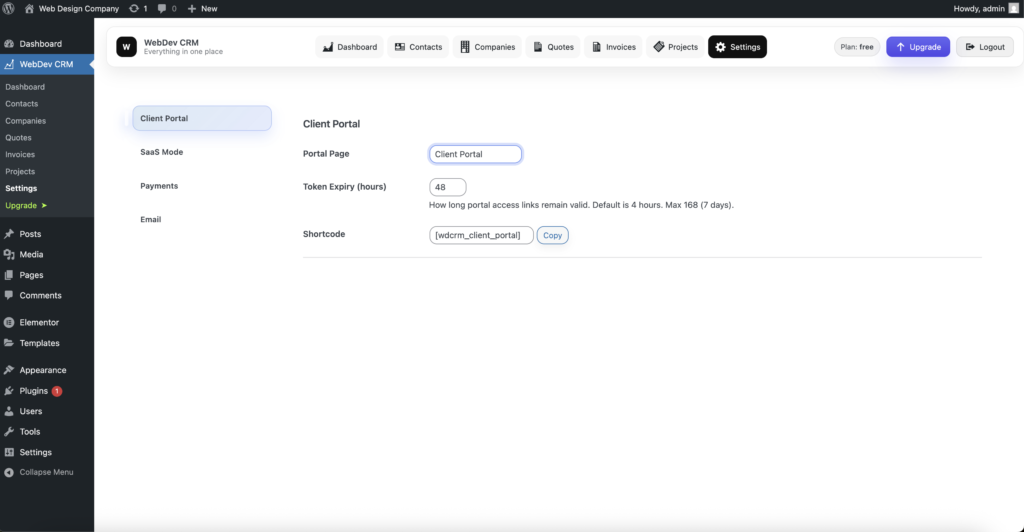
The client portal is configured from the Settings area in WebDev CRM.
To enable and configure the client portal:
-
1. In the Administrators account, Navigate to Settings → Client Portal
-
2. Configure the following options:
Portal Page
Select the page where the client portal will be displayed.
This page should contain the client portal shortcode.
Token Expiry (hours)
Set how long portal access links remain valid.
-
Default: 4 hours
-
Example: 48 hours
-
Maximum: 168 hours (7 days)
This controls how long a shared portal link can be accessed before it expires.
Shortcode
[wdcrm_client_portal]
Insert this shortcode into the selected portal page using any page builder that supports shortcode (e.g Elementor, Breakdance).
This is what renders the client portal content and then page builders can display content around it for Website branding purposes.
Once saved, the client portal is ready to be shared.

How Clients Access the Portal
Clients access the portal using secure, unique links.
Each link contains a time-limited token that grants access to the portal. No account or password is required.
When a token expires, the link automatically stops working.
Sending Client Portal Links Manually
Portal links can be generated and sent directly from a contact or company.
To send a portal link manually:
-
1. Navigate to Contacts or Companies
-
2. Click the + More button for the relevant entry
-
3. Open the Portal tab
-
4. Generate or rotate the portal link
-
5. Send the link via email
-
Note 1: This guide assumes that SMTP Email has been setup correctly with a reputable transactional email provider such as SendGrid or Amazon SES
From this section, you can:
-
Generate a new portal link
-
Rotate an existing link
-
Send the link directly to the client

Automatic Portal Links When Sending Quotes and Invoices
Portal access is also handled automatically during normal workflow.
When you send a:
WebDev CRM automatically:
-
Rotates the client’s portal token
-
Generates a new valid portal link
-
Includes that link in the email
This ensures:
-
The most recent link is always the valid one
-
Clients always access up-to-date information
-
Old links are invalidated for security
You don’t need to manage this manually.
Rotating Client Portal Links
Rotating a portal link invalidates any previously issued links and creates a new one.
This is useful if:
-
A link was shared accidentally
-
You want to limit ongoing access
-
You need to resend a fresh link
Link rotation can be done manually from the contact or company portal tab, or automatically when sending quotes, invoices, or receipts.
What Clients See in the Portal
The client portal reflects the current state of work.
Depending on what exists for the client, they may see:
-
Quotes
-
Invoices
-
Project status (Active, On Hold, Complete)
-
Project percentage complete (from the Kanban board)
The portal is read-only and focused on clarity and transparency, not interaction.

Managing Portal Access Over Time
Client relationships evolve.
By using expiring, rotatable links, WebDev CRM allows you to:
-
Share access when it’s useful
-
Remove access when it’s no longer needed
-
Avoid long-lived credentials or accounts
The portal remains lightweight, intentional, and easy to control.