Creating and Managing Contacts
Contacts represent the people you work with.
In WebDev CRM, a contact is an individual — a client, stakeholder, or decision-maker — who is directly involved in quotes, invoices, and projects. Contacts provide the human layer of client work, allowing conversations, approvals, and commercial decisions to stay connected over time.
Contacts are intentionally not tied to companies.
This keeps relationships flexible and avoids forcing assumptions about organisational structure.
What a Contact Is Used For
A contact can be linked to:
This allows you to:
-
Address work to a specific person
-
Track who approved what
-
Maintain continuity when projects evolve or repeat
Contacts exist independently, so the same person can be referenced across multiple pieces of work without duplication.
Creating a New Contact
Creating a contact establishes a person you can reference throughout your workflow.
Steps:
-
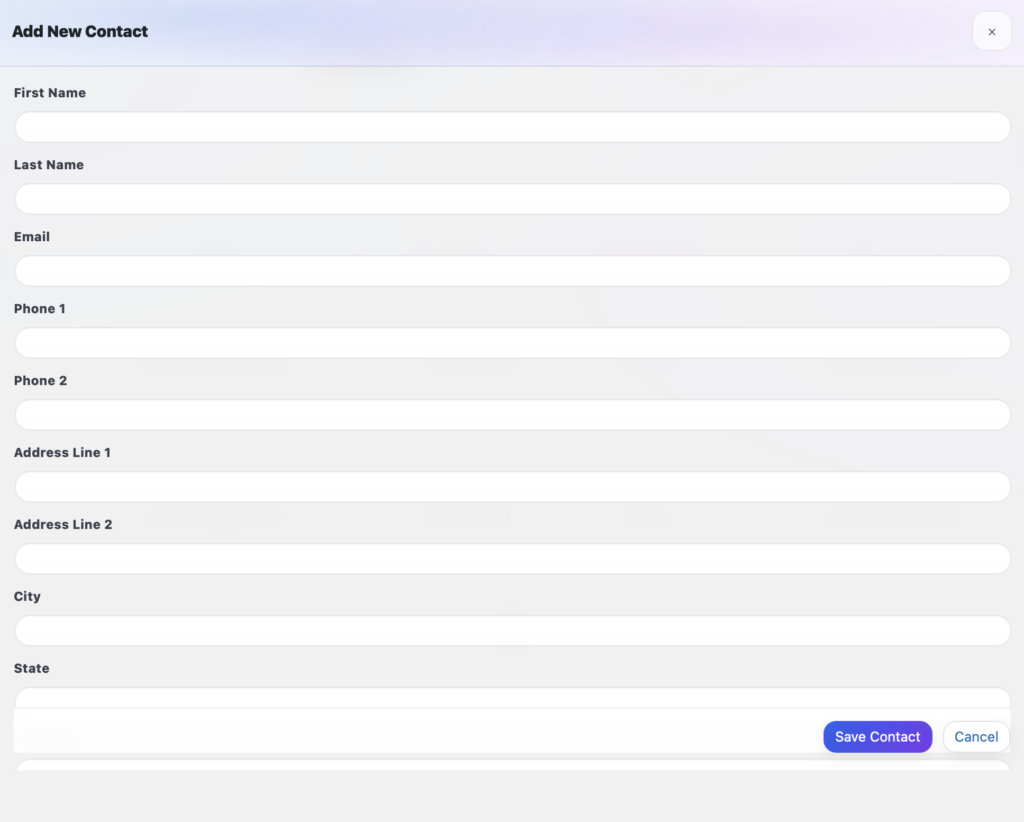
1. Navigate to Contacts from the WebDev CRM menu.
-
2. Click Add Contact.
-
3. Enter the contact’s details, such as name, email address, and phone number (Optional - Add Notes or an Attachment).
-
4. Click Save
-
5. The New Contact will Appear in the Contacts Table.
Editing an Existing Contact
Contact information can change over time. WebDev CRM allows you to update a contact without breaking historical context.
Option 1: Inline Editing
Key information for a contact exists in the main contacts table view which can be edited by following these steps:
-
1. Identify the Contact you wish to edit.
-
2. Left-Click on any of the following columns for that specific contact: First Name, Last Name, Email, Phone 1 and Company Tag.
-
3. Edit the relevant details.
-
4. Click Save (Optionally click cancel should you wish to abort).
-
5. The Contacts details have now been saved to the Database.

Option 2: +More Window
Key information for a contact exists in the +More Window which can be edited by following these steps:
-
1. Identify the Contact you wish to edit.
-
2. Left-Click on the +More button.
-
3. Left-Click on any of the following columns for that specific contact inside the +More Window - Contact Info Tab: First Name, Last Name, Phone 1, Phone 2, Address 1, Address 2, City/Suburb, State, Area Code, Country, Job Title, Department and Company Tag.
-
4. Edit the relevant details.
-
5. Click Save (Optionally click cancel should you wish to abort).
-
6. The Contacts details have now been saved to the Database.

Using Contacts in Quotes, Invoices, and Projects
When creating a quote, invoice, or project, you can assign a contact directly.
This ensures:
-
Quotes are addressed to the correct person
-
Invoices reference the right recipient
-
Projects remain connected to the people involved in delivery
Because contacts are shared across these areas, you don’t need to re-enter the same information multiple times.

Why Contacts Are Not Tied to Companies
WebDev CRM deliberately keeps contacts separate from companies.
This avoids assumptions such as:
-
One person belonging to only one organisation
-
Company structures remaining static over time
-
All work being scoped strictly at a company level
In real client work, individuals move, roles change, and relationships span multiple engagements. Keeping contacts independent allows you to reflect that reality without workarounds. In addition, it allows the flexibility to work with a client that may not have a Company structure yet.
Managing Contacts Over Time
As your client relationships grow, contacts become part of the long-term record of your work.
You can:
-
Reuse contacts across multiple projects
-
Reference the same person in new quotes or follow-up work
-
Maintain a clear history of who was involved in each decision
Contacts help preserve continuity, not just information.


