Creating and Managing Quotes
Quotes represent the starting point of real client work.
In WebDev CRM, a quote is more than a price. It captures scope, assumptions, and intent at a specific moment in time. Quotes establish shared understanding before work begins — and that understanding continues to matter long after the quote is accepted.
Quotes can be linked to:
This allows you to scope work at the appropriate level without forcing a single structure.
What a Quote Is Used For
A quote allows you to:
-
Define what is included right now
-
Set expectations before work begins
-
Record commercial assumptions
-
Create a clear reference point for future discussions
Once a quote is accepted, it becomes part of the long-term context for the work that follows.
Creating a New Quote
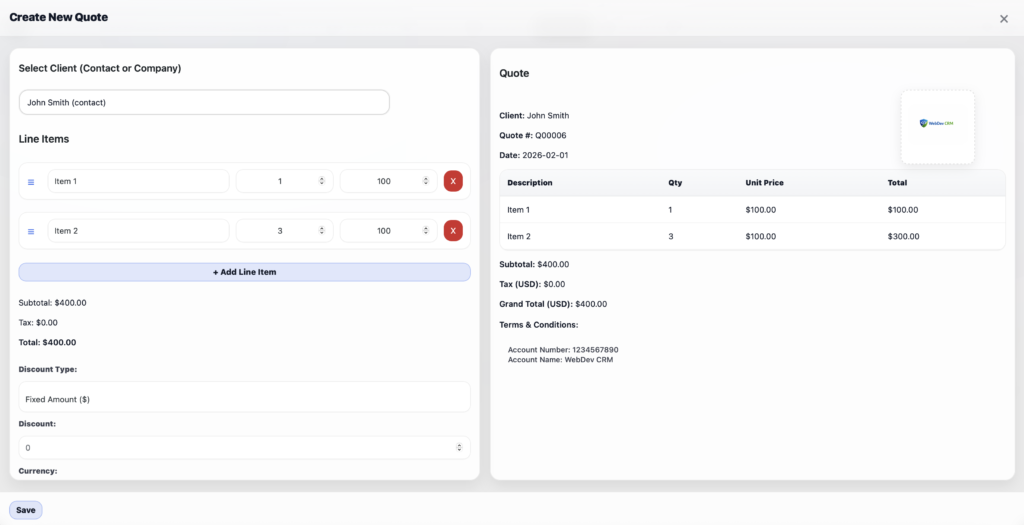
Creating a quote establishes the commercial foundation of a project.
Steps:
-
1. Navigate to Quotes from the WebDev CRM menu
-
2. Click Add Quote.
-
3. Select a contact or company
-
4. Enter quote details such as line items, pricing, curency, tax rate, and quote terms. (Optional - Add your Business Logo by left-clicking on the logo box)
-
5. Save the quote
-
6. The quote will appear in the main quotes table as a Draft.
Editing an Existing Quote
Quotes often evolve before being accepted.
You can safely edit a quote while it is still in draft or pending state.
To edit a quote:
-
1. Navigate to Quotes from the WebDev CRM menu
-
2. Identify the Quote you want to edit and left-click on the View & Edit button
-
3. Edit the relevant details.
-
4. Click Save (Optionally click X in the top right of the window should you wish to cancel).
-
5. The Quote details have now been saved to the Database.

Sending a Quote via Email
Once a quote is ready, it can be sent directly to the client via email.
Sending a quote allows you to:
-
Share the full quote details with the client via their secure client portal
-
Maintain a clear record of if it was sent
-
Keep communication tied to the quote itself
To send a quote:
-
1. Navigate to Quotes from the WebDev CRM menu
-
2. Identify the Quote you want to edit and left-click on the View & Edit button
-
3. Left-click Send Quote
-
Note 1: The contact or company needs to have a valid email address to work
-
Note 2: This quide assumes you have setup SMTP Email in settings with a reputable transactional email provider such as SendGrid or Amazon SES
Because contacts are shared across these areas, you don’t need to re-enter the same information multiple times.

Converting a Quote to an Invoice
When a quote is accepted, it can be converted directly into an invoice.
This preserves continuity by carrying commercial details forward without duplication.
To convert a quote:
-
1. Navigate to Quotes from the WebDev CRM menu
-
2. Identify the Quote you want to convert and left-click on the View & Edit button
-
3. Left-click Convert to Invoice
The new invoice remains linked to the original quote, maintaining a clear chain of decisions.

How Quotes Fit Into Client Workflow
Quotes are not isolated documents.
They inform:
-
Invoices, by defining what is being billed
-
Projects, by shaping scope and delivery expectations
-
Future changes, by providing historical reference
When a scope discussion arises weeks or months later, the quote often explains why something was done a certain way.
That’s why quotes are treated as part of a connected system — not a one-off file.
Managing Quotes Over Time
As client relationships continue, quotes accumulate context.
You can:
-
Reference old quotes when scoping new work
-
Compare assumptions across different phases
-
Maintain clarity as scope evolves incrementally
Quotes become part of the long-term memory of the relationship.


