Managing Stripe Payments & Email
WebDev CRM handles payments and email delivery as extensions of client workflow, not as abstract system features.
Both Stripe payments and email delivery are designed to:
-
Stay optional
-
Remain transparent
-
Preserve ownership and control inside WordPress
This section explains how each works and how to configure them correctly.
Stripe Payments
Stripe allows clients to pay invoices directly from the client portal using secure, hosted checkout.
WebDev CRM does not act as a payment intermediary.
You connect your own Stripe account, using your own API keys and webhooks.
Enabling Stripe Payments
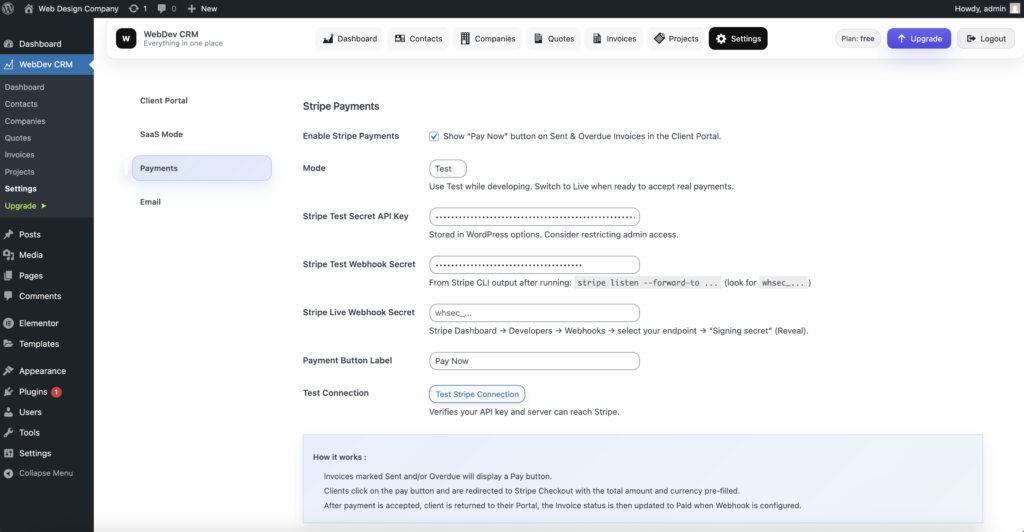
Stripe is configured from Settings → Stripe Payments.
To enable Stripe payments:
-
Navigate to Settings → Stripe Payments
-
Enable Stripe Payments
-
Choose a mode:
1. Test – for development and testing
2. Live – for real payments
-
Enter your Stripe API keys and webhook secrets
-
Save settings
Once enabled, Stripe integrates directly into the invoice workflow.
Stripe Account and API Keys
You must have your own Stripe account.
WebDev CRM requires:
-
A Stripe Secret API Key
-
A Webhook Signing Secret
These values are stored securely in WordPress options.
Access should be limited to trusted administrators.
Webhooks and Invoice Status Updates
Stripe webhooks are required to automatically update invoice status.
When a payment succeeds:
-
Stripe sends a webhook to your site
-
WebDev CRM verifies the webhook signature
-
The invoice status is updated to Paid
-
The payment button is removed from the client portal
Without a webhook configured, payments can still be taken, but invoice status must be updated manually.
How Stripe Payments Work for Clients
Stripe payments appear only when appropriate.
Invoices marked as:
Will display a Pay Now button inside the client portal.
Client flow:
-
1. Client opens the client portal
-
2. Clicks Pay Now on an invoice
-
3. Is redirected to Stripe Checkout with:
- Amount
- Currency
- Invoice Reference
-
4. Completes payment
-
5. Is returned to the client portal
-
6. Invoice updates to Paid (via webhook)

Testing Stripe Payments
While in Test Mode:
-
No real money is processed
-
Stripe test cards can be used
-
Webhooks can be tested locally using the Stripe CLI
Use Test Connection to verify:
-
Your API key is valid
-
Your server can communicate with Stripe
Email Delivery
Email is used throughout WebDev CRM to send:
-
Quotes
-
Invoices
-
Receipts
-
Client Portal Links
Email delivery is intentionally decoupled from any specific provider.
Default Email Behaviour
By default, WebDev CRM uses WordPress’ built-in mail system (wp_mail).
This is suitable for:
-
Local development
-
Testing
-
Staging Environments
Local development tools (such as LocalWP) may capture emails using Mailpit or similar.
For production use, an SMTP provider is strongly recommended.
Configuring SMTP
SMTP settings are configured in Settings → Email.
Recommended providers include:
-
SendGrid
-
Amazon SES
-
Any SMTP-compatible provider
To configure SMTP:
-
1. Enable Use SMTP
-
2. Enter your SMTP host, port, and encryption type
-
3. Enter SMTP credentials
-
4. Save settings
-
5. Use Test SMTP Connection to verify delivery
This ensures reliable email delivery to clients.

From Address and Reply Handling
You can configure:
-
From Name
-
From Email
-
Optional Reply-To
-
Disable replies entirely
For production, using a no-reply address is recommended.
Email Templates
WebDev CRM includes configurable templates for:
-
Quotes + Portal Link
-
Invoices + Portal Link
-
Generic Email / Portal Access Link
Templates allow you to:
-
Maintain consistent communication
-
Avoid rewriting common messages
-
Automatically insert client-specific details
Available Shortcodes
You can use shortcodes in email subjects and bodies, including:
{client_name}
{company_name}
{portal_link}
{site_name}
{quote_number}
{invoice_number}
{amount_due}
{due_date}
{extra_text}
These values are populated automatically when emails are sent.
Default Extra Text
Each template supports optional default extra text.
This text:
-
Appears wherever {extra_text} is used
-
Can be overridden when sending an email
-
Is useful for security disclaimers or support instructions
Sending Test Emails
You can send test emails directly from the Email settings screen.
This allows you to:
-
Verify SMTP configuration
-
Preview templates
-
Confirm branding and formatting
Email Button Styling
Buttons inside emails can be styled from settings.
You can configure:
-
Button Text
-
Button Colour
-
Font weight
-
Text colour
WebDev CRM uses system fonts to ensure compatibility across email clients.
How Payments and Email Work Together
Email and payments are connected to workflow.
When you send:
-
A Quote
-
An Invoice
-
A Receipt
WebDev CRM automatically:
-
Rotates the client portal access token
-
Generates a new valid portal link
-
Includes it in the email
This ensures:
-
Only the most recent link is valid
-
Clients always see up-to-date information
-
Access remains secure and time-limited
Summary
Stripe payments and email delivery are designed to support client workflow — not replace it.
By:
-
Using your own Stripe account
-
Keeping email delivery provider-agnostic
-
Automating portal access and payment status updates
WebDev CRM preserves ownership, security, and continuity inside WordPress.


